Today (Friday, August 13) I discovered tempo changes only change the first 50 bars. Bar 51 and beyond reverts back to the original tempo. This flaw makes the app unusable for my purposes. At least I was able to export my files as standard MIDI files.
I’ve been busy making backing tracks for my compositions. I had previously made a book of 60 songs that I’ve written. Now I’m making backing tracks for them. I have already made 47 out of the 60. This next one is number 48. I’m using Walk Band on a tablet to make bass and percussion tracks that are used for rehearsals and may also be used for recordings and performances, with my woodwinds player and husband, Jim Igo.
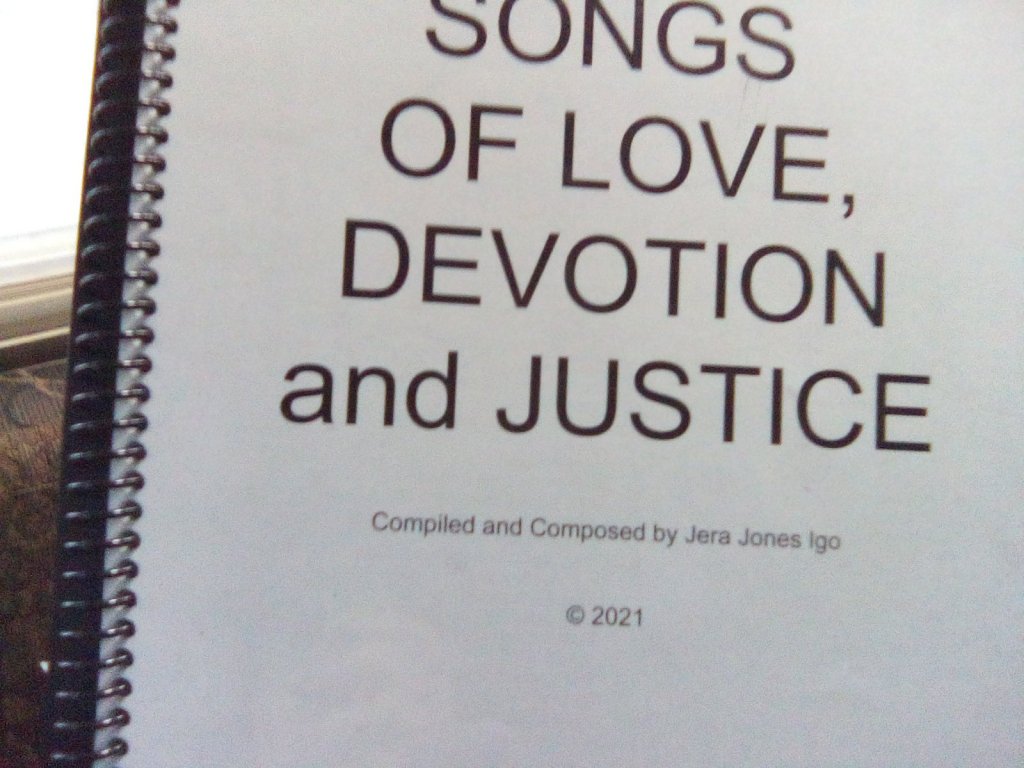
(The book is not for sale. I just made it for myself and band mates.) The song I am about to make a backing track for is called Proclamation.
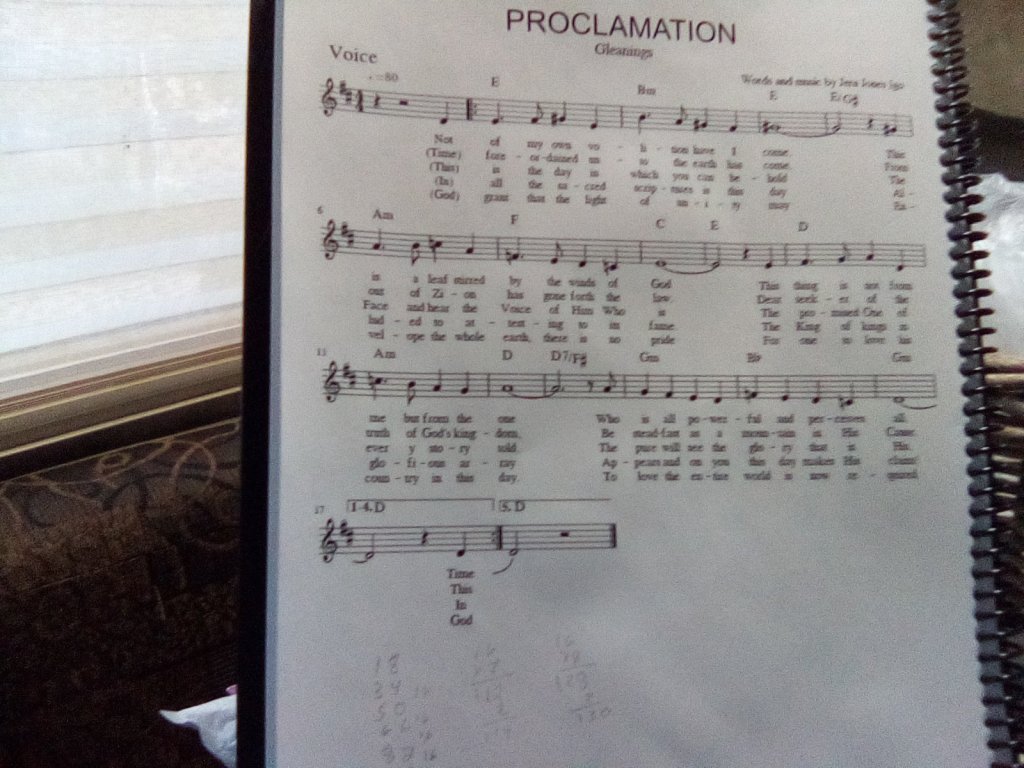
The song is subtitled Gleanings because it contains some fragments from the Gleanings From the Writings of Bahá’u’lláh. It has 5 verses. I will use an instrumental verse for the intro and another for the outro, so my backing track will have 7 verses. I will describe my struggles with the backing tracks, using the current one as an example.
I started out using Musescore. I made the sheet music for my songbook with Musescore, and then I made a number of the backing tracks with Musescore as well. Then I exported the tracks as MIDI files, and played the MIDI files on my phone at our practice site at a nearby park. My phone ran out of memory, so I got a tablet, and used that, but I couldn’t find a program that would enable me to edit the MIDI files, make tempo changes and other small adjustments, except I did try Walk Band for that, but it changed the MIDI files to the point where it was frustrating. It changed the instrumentation around. It was pretty hard to predict what I would get, so I realized I would have to make the files on Walk Band if I was going to use that app to play them. It was quite a process of learning. I think the app is for playing an “instrument” such as
“piano”, “guitar”, “bass” or “drumkit” on a phone or tablet instead of using the actual instrument. You could get 4 or 5 people together, each with a phone or tablet running Walk Band and have a “band”. That is not my purpose. I play a real guitar and Jim plays a real sax, flute or clarinet. I just need a recorded track of bass notes as a substitute for the bass player we don’t yet have, and ditto for percussion. It would be nice to be able to vary the tempo and the relative volume of the various tracks on the MIDI file. But I don’t want a bass to morph into a piano and vice versa.
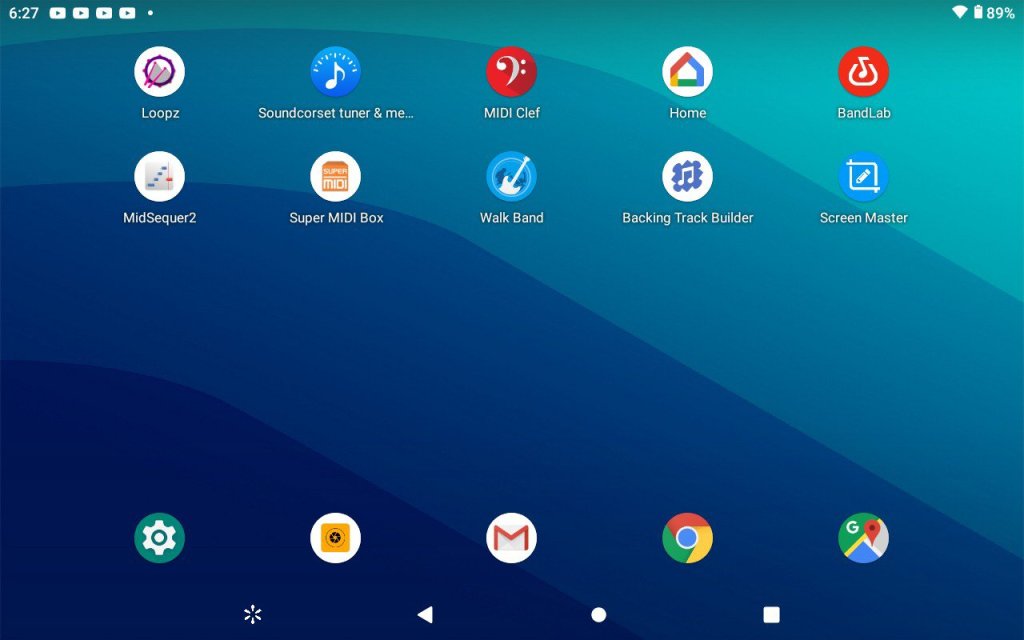
I downloaded several music apps to my tablet but Walk Band was the only one that I was able to get to record notes without a MIDI keyboard. Once I realized this is the way it is, I set about to learn the capabilities and limitations of the app. I tried the various ways of entering notes — and there are several. The way I find most useful is to touch squares on a grid. I power up the tablet and touch the Walk Walk Band icon to open the app.
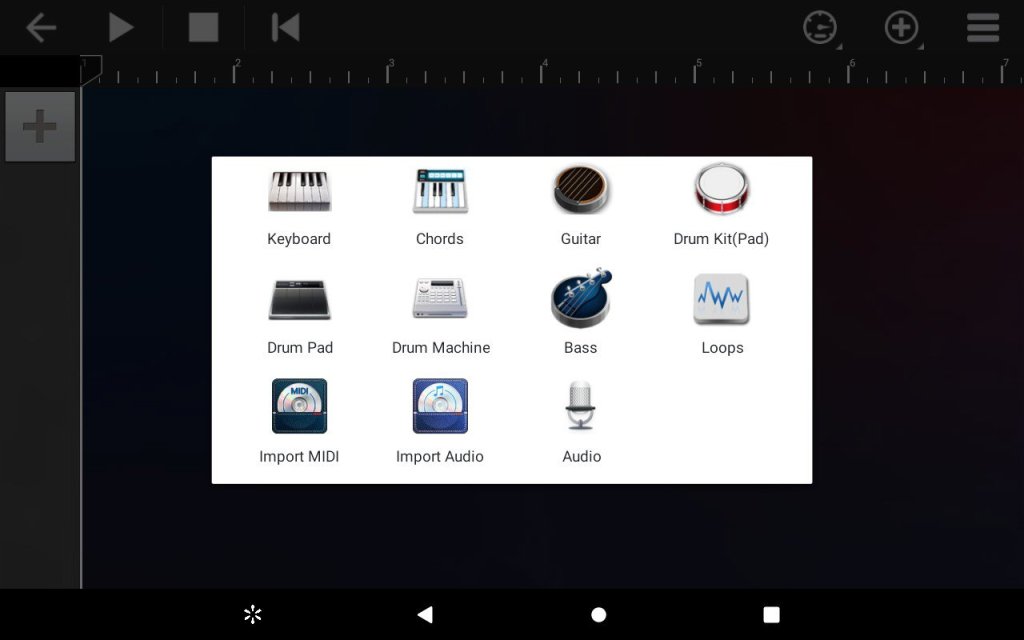
Icons for some of the instruments appear.
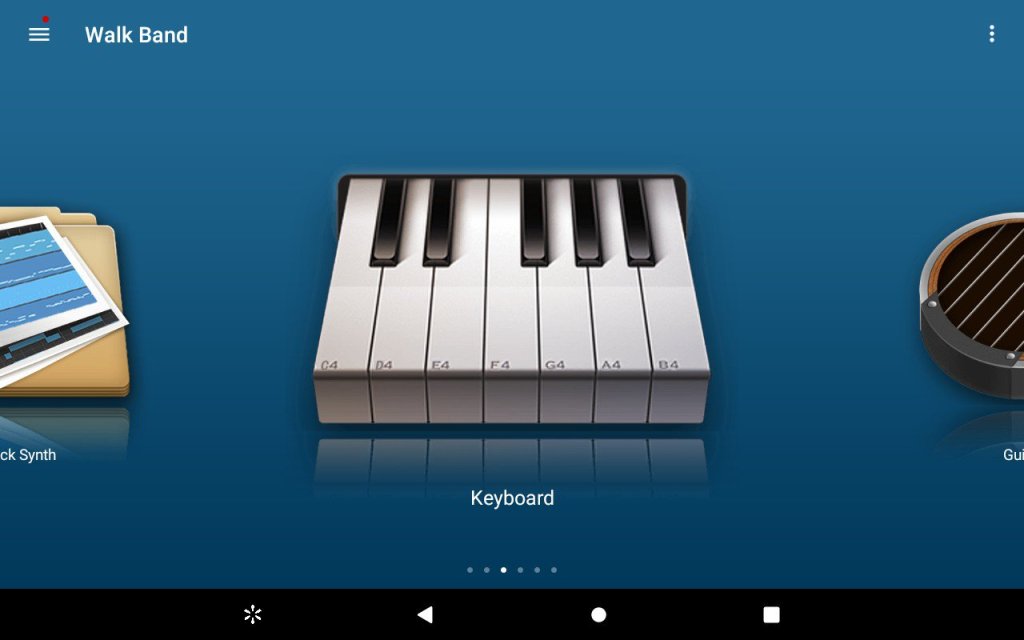
I choose Multitrack Synth.
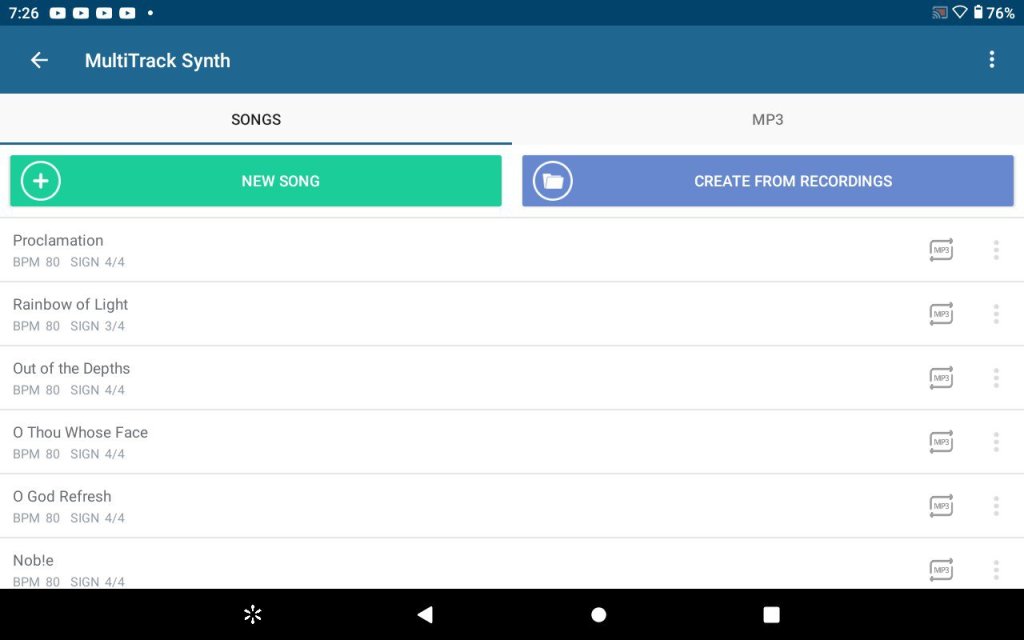
I get a list of music I have already developed, and the choice also of starting a new song, or creating from a recording. I am starting a new song so I select that option. A form pops up with fields for name, time signature and so on.
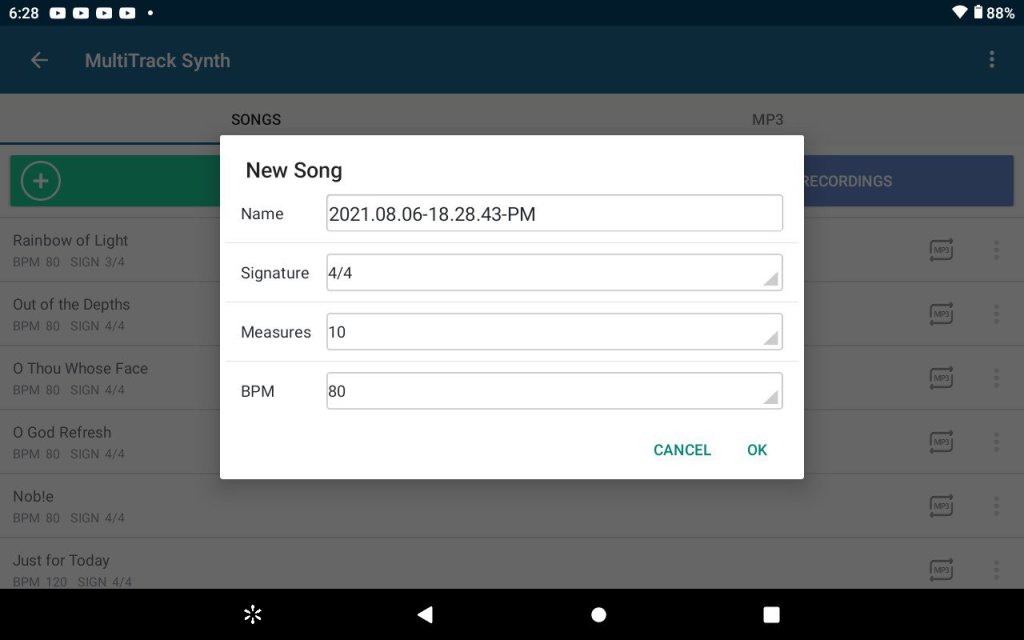
The name field defaults to a date and time. I want to name the file with the actual name of the song, so I touch next to the M of PM, a keyboard comes up. I hit the backspace to remove the date and time and type Proclamation. The time signature defaults to 4/4, which is what I want for this song, so I leave it alone. Measures (meaning number of measures) defaults to 10. I want many more than that. I touch inside the box, a drop down list appears with 10, 20, 30, 40 and 50. so I choose 50, which will probably not be enough, but I can add more later. At this point I must close the keyboard in order to look at the last field. I do this by touching the down pointing triangle at the bottom of the screen.
The last field is BPM (beats per minute – tempo). The default is 80, which happens to be what I want. But even if I wanted a different tempo, I would still choose 80, and I’ll tell you why.
Because on another piece that I previously made a track for, using this app, I wanted a faster tempo, so I figured, I’ll just just go for 120 beats per minute. When I got to the end of the 50 bars that you can add at this point, and needed more measures, I had the opportunity to add more measures in the part of the program that opens next, and so I did, but assumed the default would be the tempo I had already set. So here I am checking out my great background which I thought I was all finished, and all of a sudden the temple slows to a crawl! What’s up with that? What was up with that was the new measures I had added were at 80 beats per minute and the original measures I had added from the beginning were at 120 beats per minute! It was a very unpleasant lesson because I had already done a lot of programming on the track, not realizing that the temple had gone awry. I couldn’t find a way to fix it other then to erase all the work I had done and start over! Now, no matter what tempo I want I let it stay at 80 for now, because once I’m finished recording the track, I can change the temple for the whole thing, but if I should forget that every time I add more bars I need to put in the temple I want specifically, not just accept a default, then it’s a real mess that cannot be fixed except by starting over.
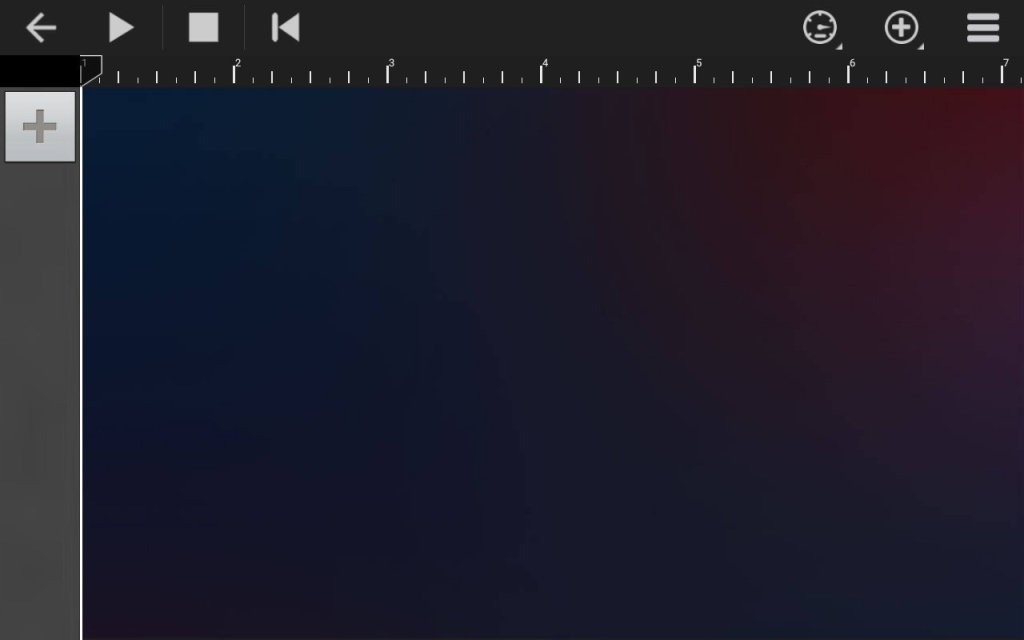
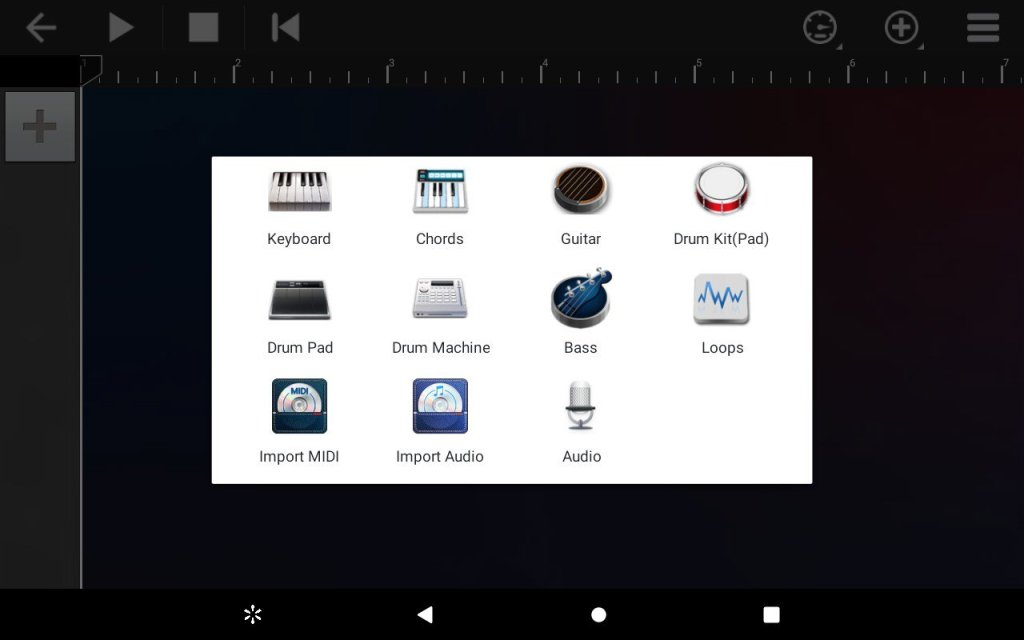
I touch OK. I touch the + in the upper left corner of the next screen. I want to create a bass line, so I touch the bass icon.
This next screen is a playable bass guitar game. I’m not much of a gamer, I just want to get to the next screen. If I push the back arrow, I’ll just get back to where I started. So I hit the red
dot.
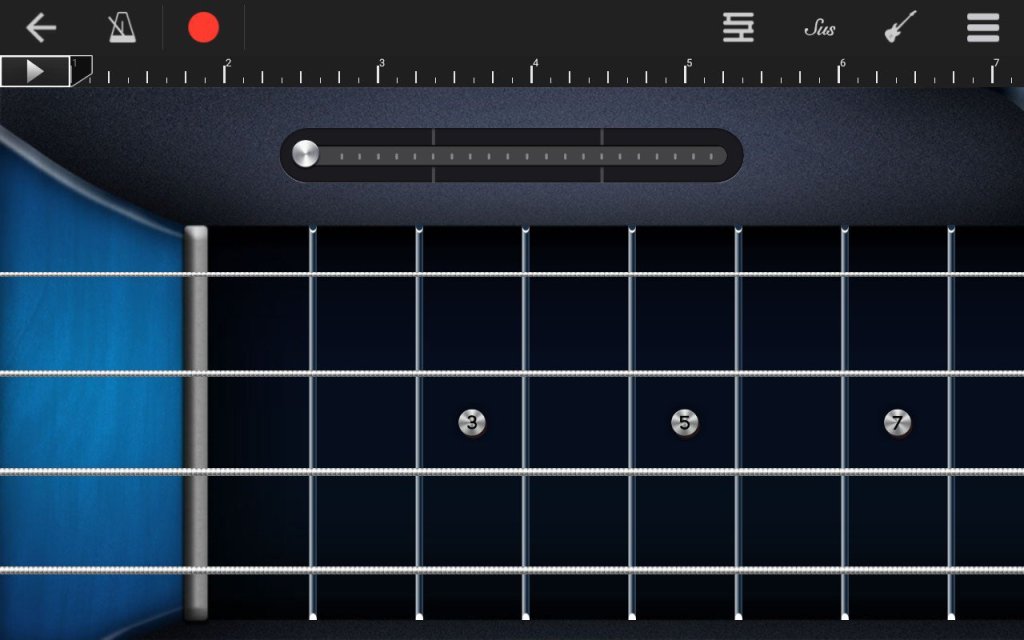
There are 3 clicks of a count-in while displaying the numbers, 3, 2, 1. As soon as that is over, I touch any string at any fret 2 or 3 times, then touch the stop button which is where the red dot used to be. Then I push the back arrow. The bass guitar icon is now on the left of the screen under the back arrow and above the +.
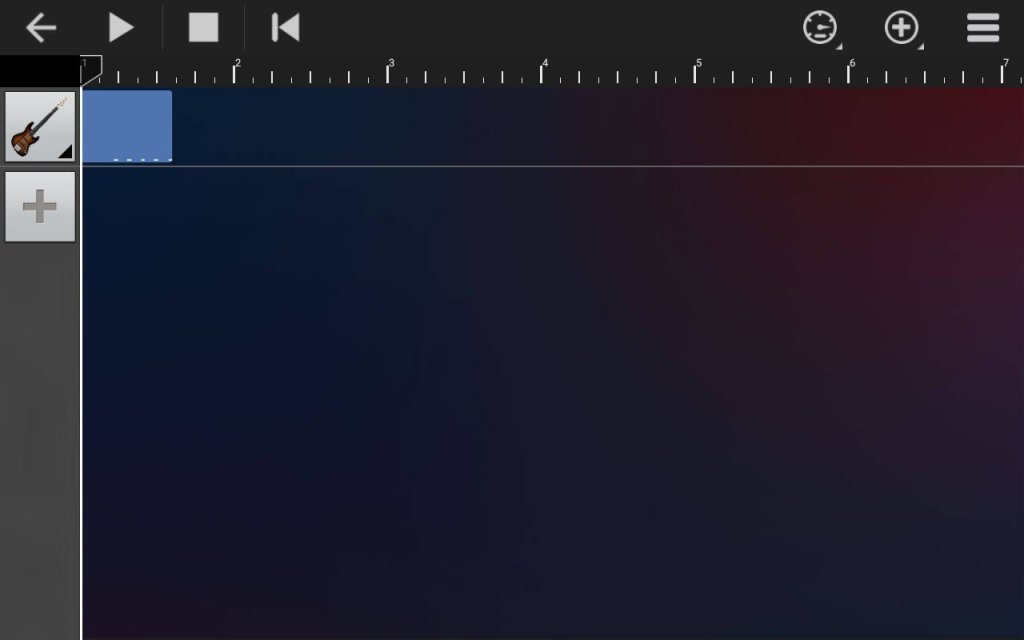
I touch the bass guitar icon. A menu opens up. I touch Edit Track.
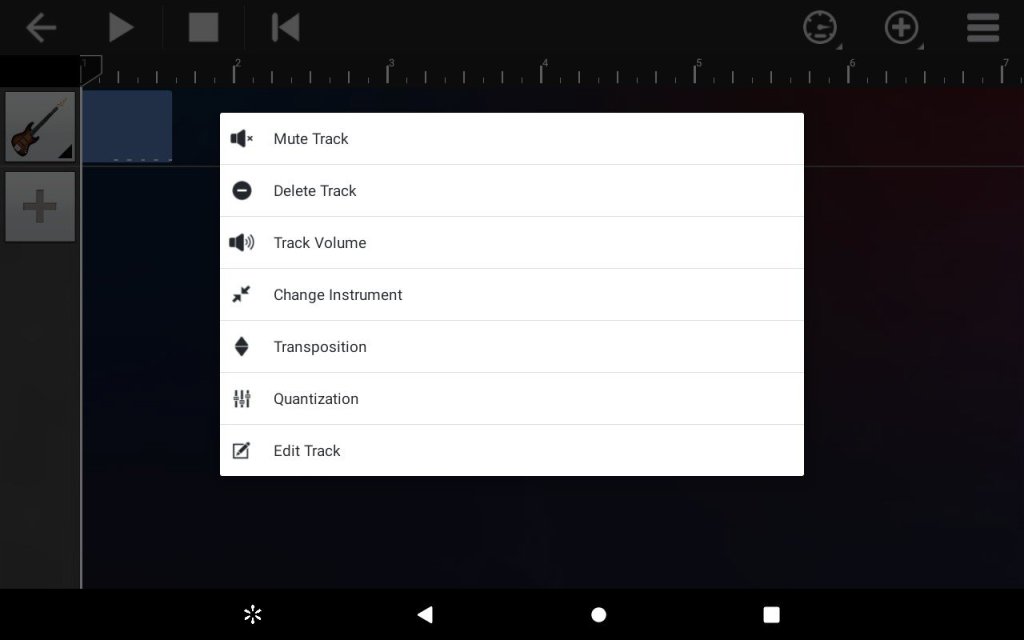
I scroll down to find the notes I entered near C2. I spread the screen apart with my fingers to make the notes bigger. I touch one of the blue boxes. Then I push delete. I continue deleting notes until they are all gone. Now I am ready to enter the notes I actually want. (If there is another way, other than this round-about way, to get here, I haven’t discovered it.)
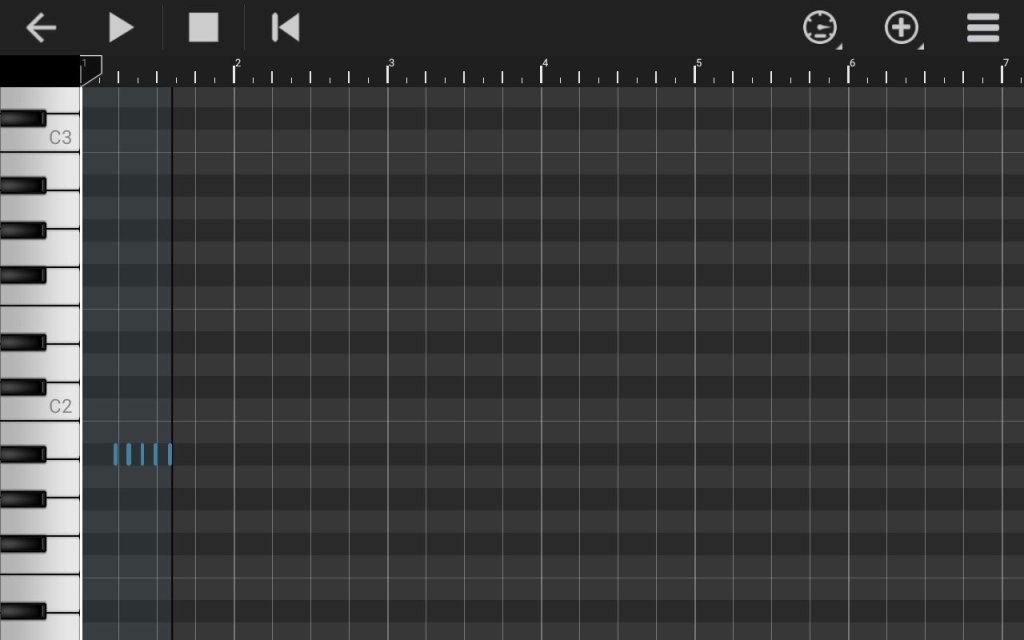
I contract the screen again, keeping C2 visible on the left. I find the 3 at the top of the screen. I will start the bass part near this measure, reserving the first two bars for a count-in (and include the first bar of the score). I consider the style of the piece. If it were a blues or a shuffle, I would need to input 16th notes, then quantize them to triplet 8ths after I complete the inputting of the track. However, for this piece, regular 8th and 16th notes will be fine, if I decide to include any. I decide to use a quarter note on the first beat of every measure and another quarter note on the third beat of every measure. I could use a walking bass, but that might be too “busy” for this piece. The first beat bass note will be the root of the chord. The third beat bass note will be the 5th of the chord. The chord of the second measure (which will be the 3rd measure of this track) is E. The range of the bass guitar goes down to E1, but I decide to use E2 for this note. I touch the screen opposite E2 and just to the right of the line under the 3. Then I touch NEW on the menu that appears on the bottom of the screen. Since the next chord is a B (the 5th of E) I decide to use the 3rd of E for the note on the 3rd beat of measure 3. I touch the screen to the right of G#2 for the 3rd beat bass note of measure 3, then touch NEW.
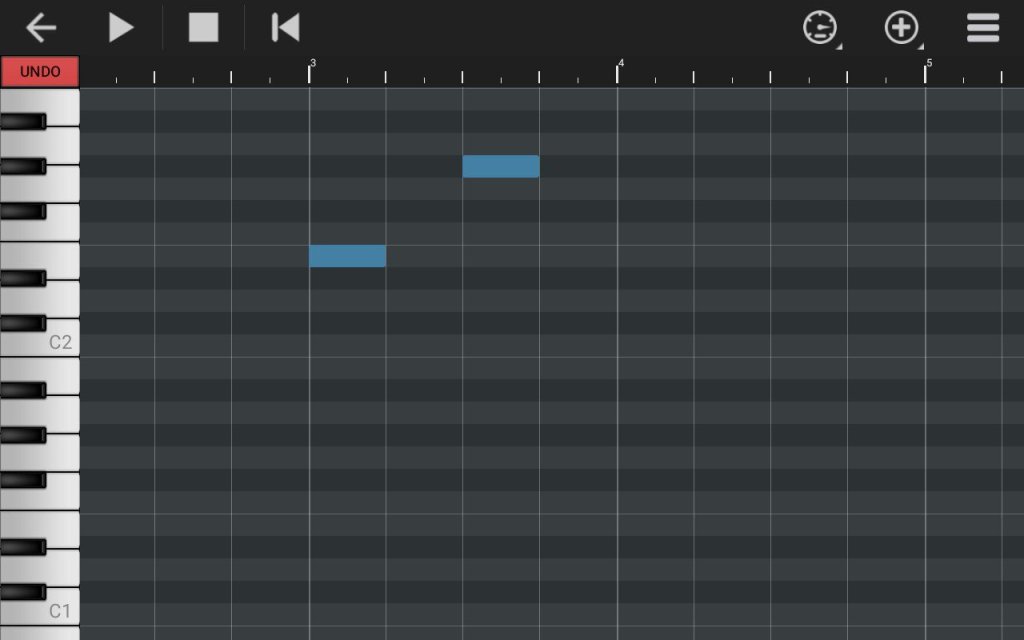
Measure 4 of my bass track is going to correspond with measure 3 of my sheet music. The chord is Bm. I decide to use B1 for the 1st beat bass note. I push the screen to the left and input F#2 on the 3rd beat. I continue to input bass notes from the chords on the score. Each measure number on the score is 1 less than its corresponding measure number on the track… I have completed entering the first verse of the song, through measure 18 (which corresponds to bar 17 on the score). I push the back button. I want to save the file, so I push the back arrow again, and choose Ok on the menu that pops up. (Choosing Cancel would have erased everything I had done since my last save.) I now choose Proclamation to continue building the track.
I must divide the beginning and the end of the first verse. I spread out the screen and position the 3 in the middle of the top of the screen. Then I touch the blue band under the 3. Then I touch SPLIT.
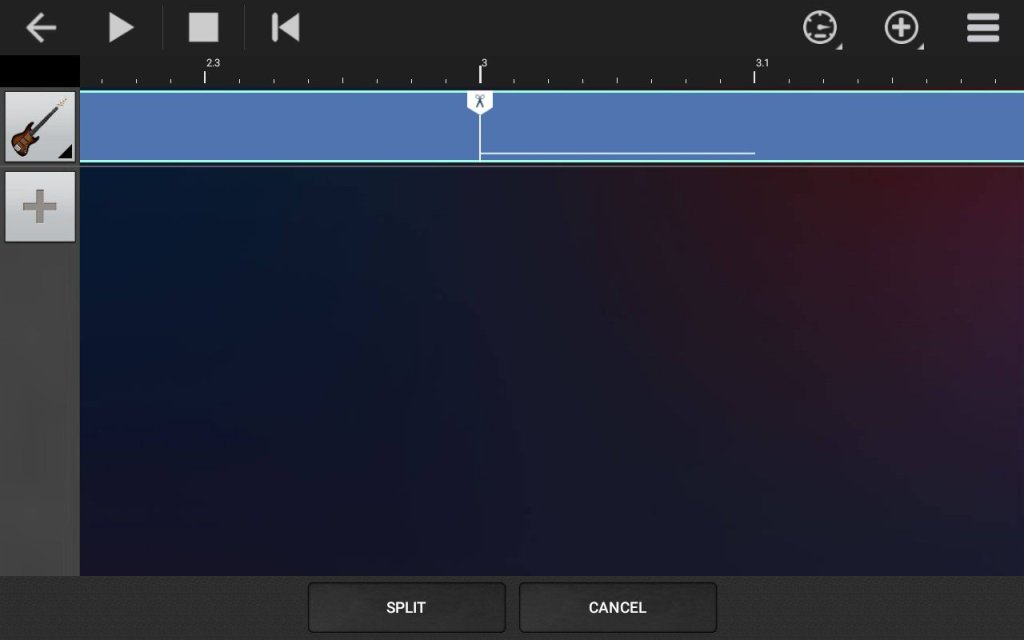
With a finger, I move the scissors handle directly under the line to the immediate left of the 3. Then I touch SPLIT a second time. Now I move the screen to the left to find measure 18.
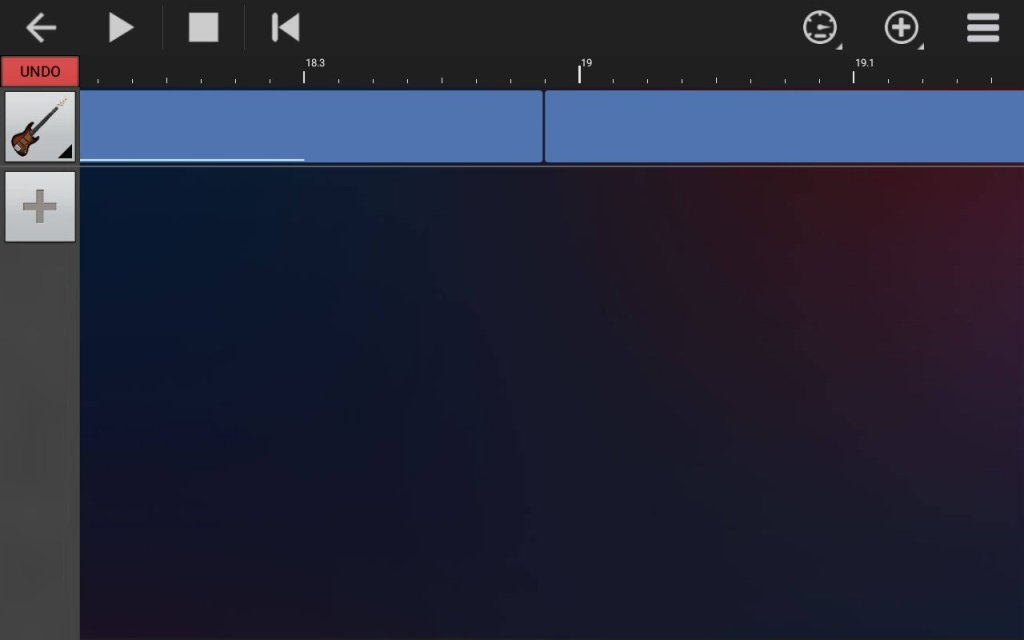
I touch the blue band somewhere between 18.3 and 19. There needs to be a gap between this split and the beginning of measure 19 or the verses won’t fit against each other. Then I touch SPLIT at the bottom of the screen, and touch SPLIT again.
Now I touch the blue band to the right of the 19, and touch DELETE.
Now I touch near the end of the blue band, and touch DUPLICATE. The beginning of the white line needs to be under the line to the immediate left of the 19. If not, I touch the 2nd verse and then touch MOVE and with a finger move it into place. (If the first verse is too close to the 19, I have to split more off of the end of it, then select and delete the fragment.
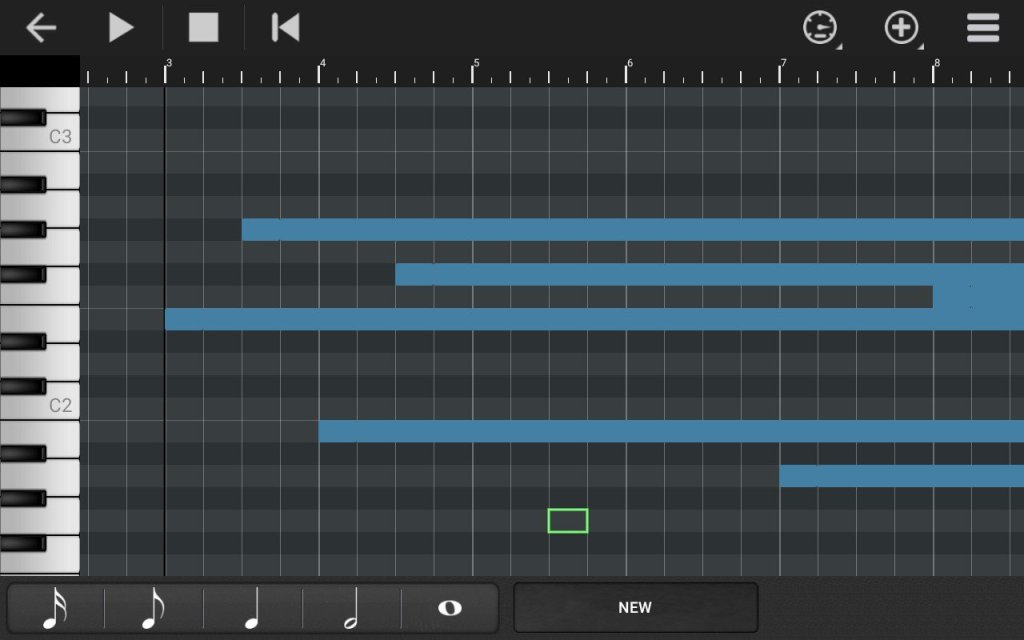
Touch the guitar icon and the Edit Track, scroll down to C3 or C2. If the notes are blurred together (like above), something is wrong.
Push the back arrow and select and delete the second verse, then look at the edit screen again. Sometimes it’s not possible to line it up perfectly enough. I just continue adding verses until there are 7, lining them up as best I can. When I run out of measures, I touch the + in a circle on the top right. 7-16 bar verses plus a 2 bar count-in will require 114 measures. Add 50 then add 20.
Touch the + on the left and choose Drum Machine to add a drum track.
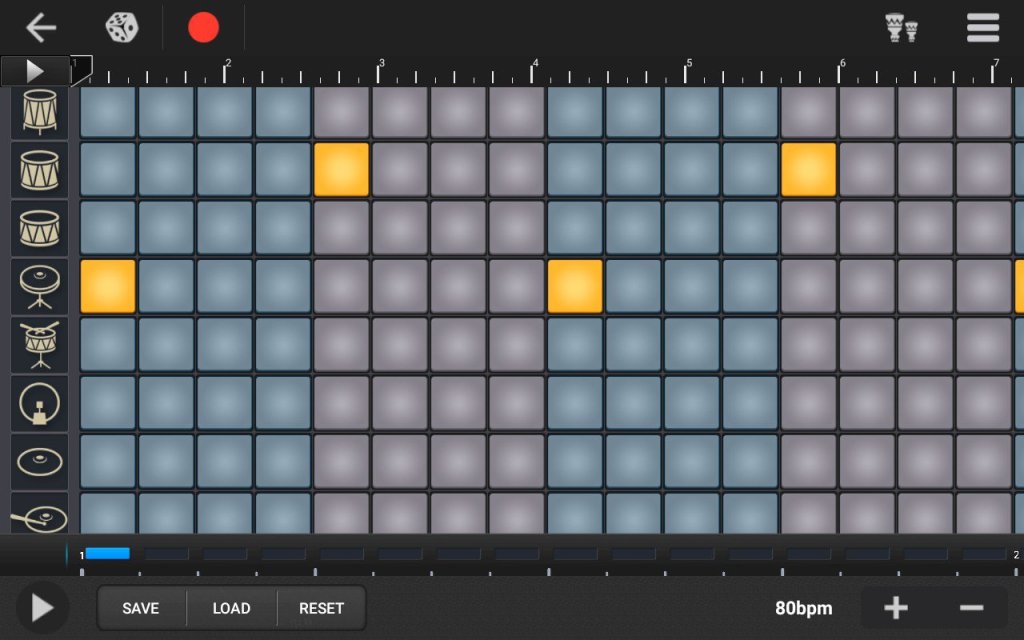
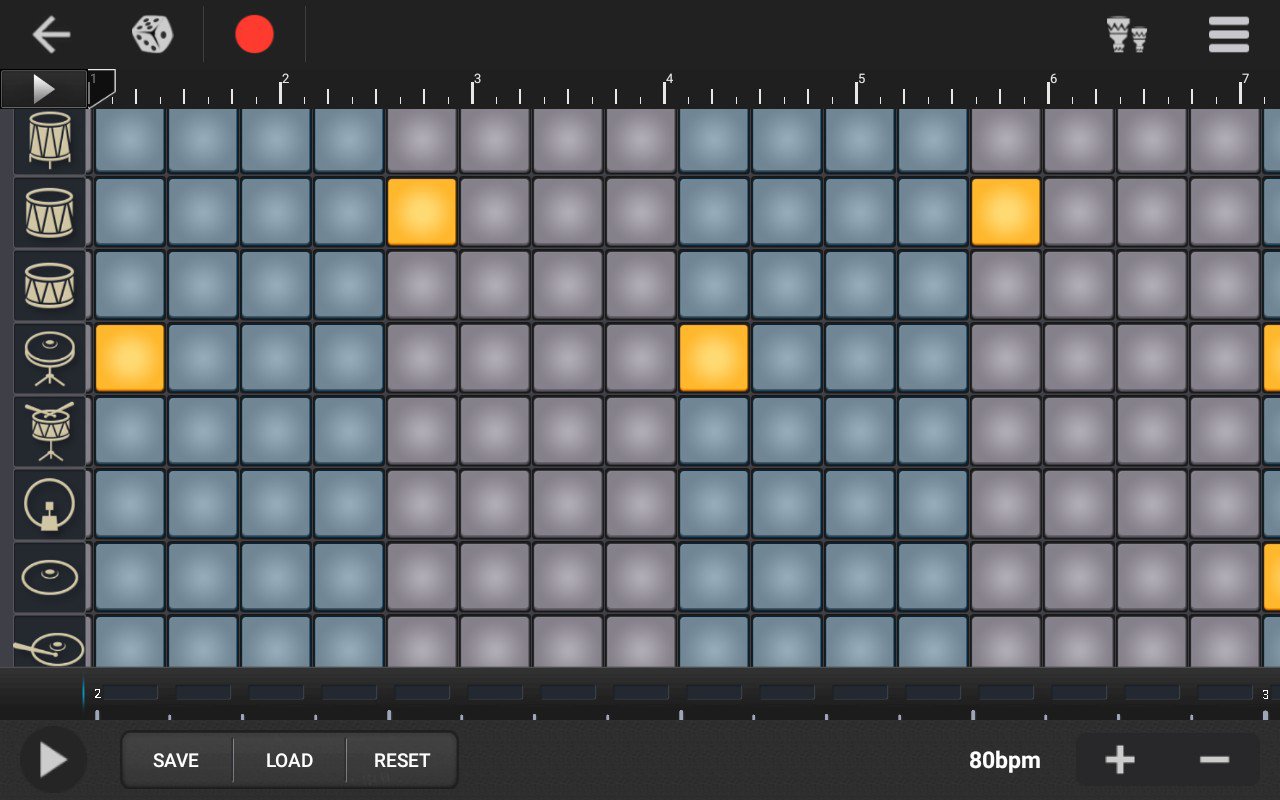
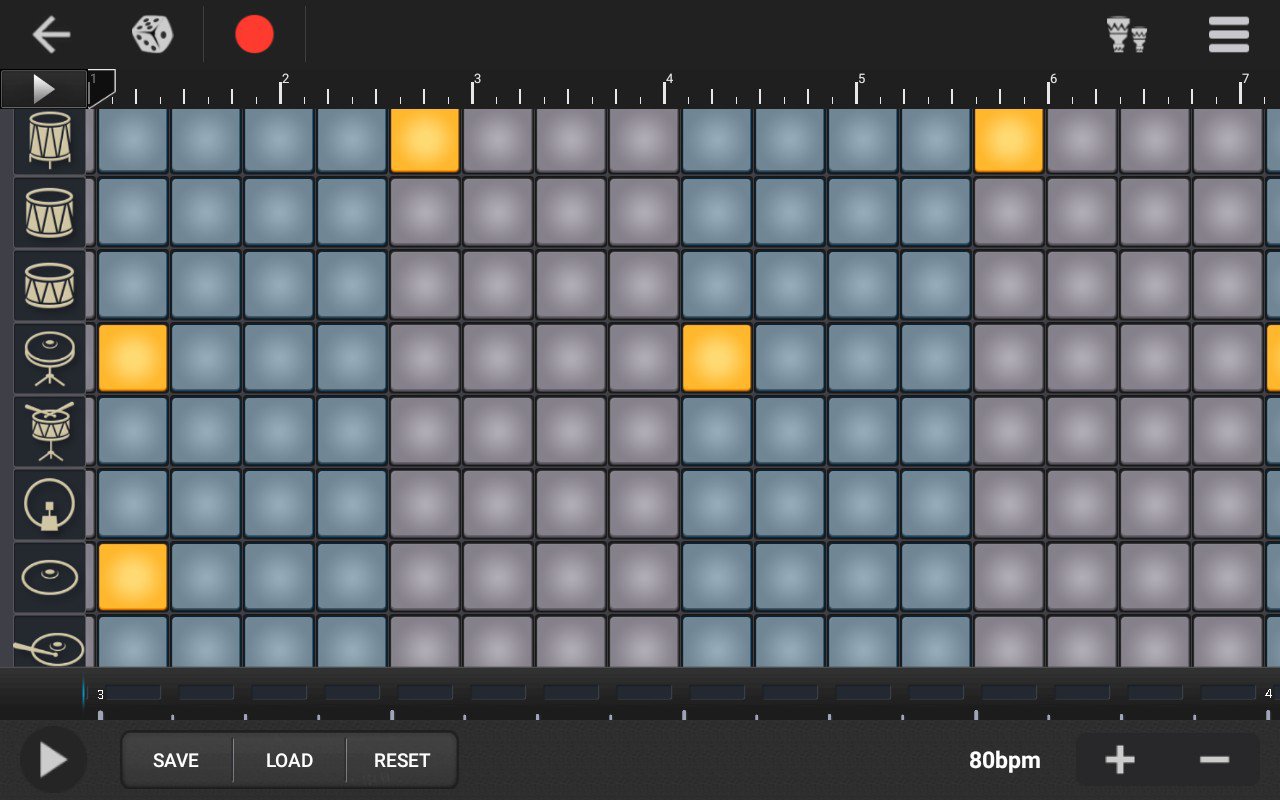
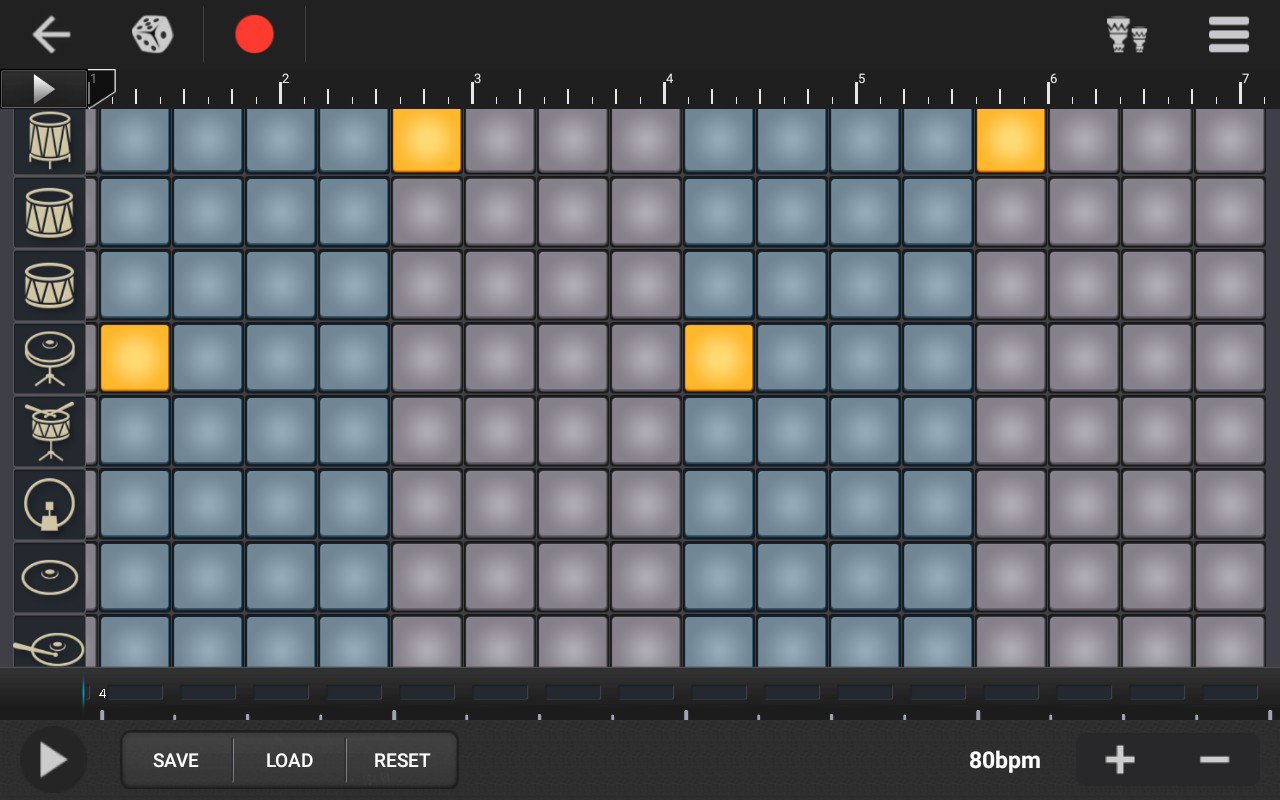
Touch the red circle and record 114 bars. Now with my tablet, guitar, and a battery powered amplifier, I can play and perform this song anywhere!
 Albino Lizard
Leave a comment