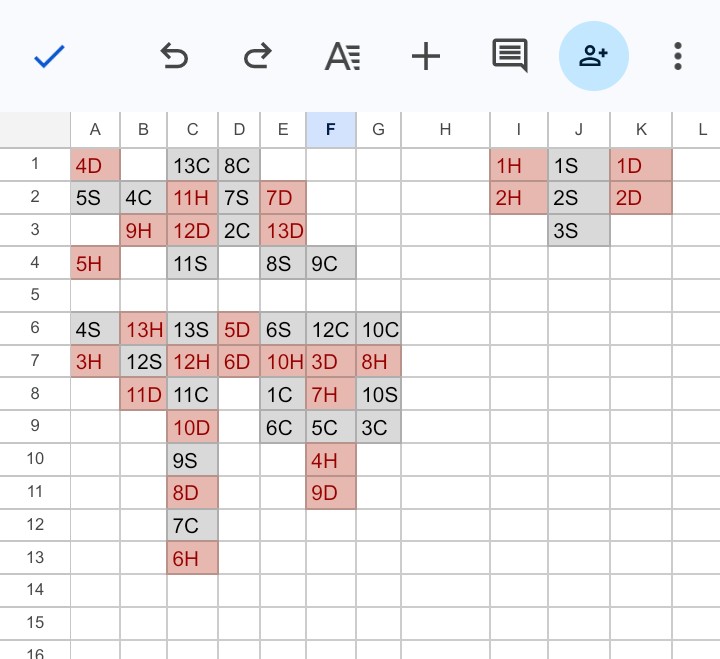
Exasperated by the frequent and difficult-to-dismiss interruptions to my play-store solitaire game, I made my own on a Google sheet. It is just as addictive and fun, without ads, and has the added advantage of appearing, to anyone who happens to look over my shoulder, that I am engrossed in something useful, rather than frittering my time away playing games with myself.
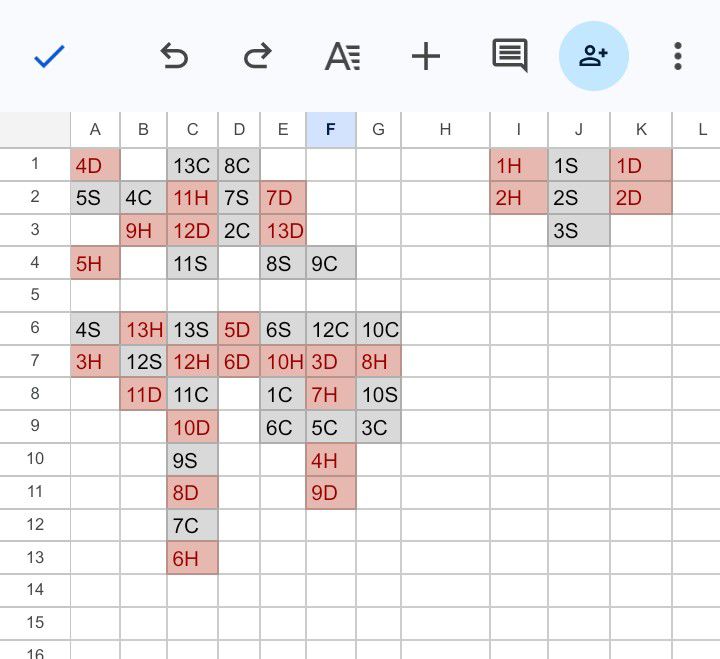
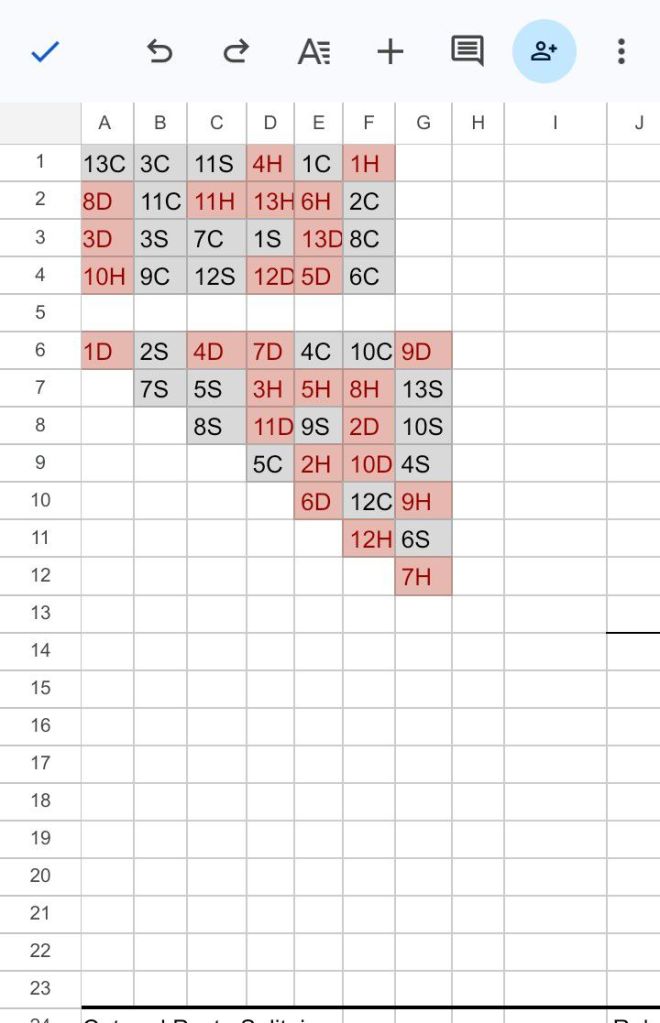
On the top left are available tokens to be used at will (the game began with 24 of them). At the top right is the (in progress) final ordering of 4 categories of 13 tokens each, each category (H, S, D, and C), numbered from 1 through 13. When this is completed (or it is obvious that it can be) the game is “won.” (At the beginning of the game this area was empty.) At the bottom left is the main working pattern of the game. At the beginning this area contained 28 tokens laid out in a triangle, with one token in the left-most column, 2 in the second column from left, 3 in the third, and so on, and 7 in the right-most column. The player can move the token at the bottom of each column, or any portion of a column that has been ordered, if doing so preserves and continues the ordering. The ordering of the lower left section of the game board consists of placing tokens in descending order top to bottom by number, where an alternating pattern of grey and red is maintained. There is no enforcement of rules in this version. Any token can be physically moved anywhere at any time (or tokens can be deleted and created). It is up to the player to follow rules as he or she chooses. Movement of tokens is most easily done by “cut” and “paste.”
Building the Game
To build the game, open a new Google sheet and mark off the playing area. To do this create a line between columns N and O from row 1 through row 23. Do this by highlighting cells 1 through 23 on column N, then select the icon at the bottom of the screen that looks like a window with 4 panes. Open border style and select a medium heavy line and back out once to choose the pane with the heavy line on the right. Back out once more and view the line on your spreadsheet.
Then highlight row 23 from A through N. Tap the four paned window icon and select the pane with the heavy line on the bottom, after selecting the slightly heavier line.

Make the Game Tokens

Navigate to cell W53. Type the 52 token names in the consecutive cells of column W. Do not specify colors or backgrounds at this point. (That will be done in a later step.) Type 1C in cell W53, 2C in cell W54, and so on until 13C is in cell W65. Copy cells W53 through W65 , and paste in cell W66, then paste again into cell W79, then a third time into cell W92.
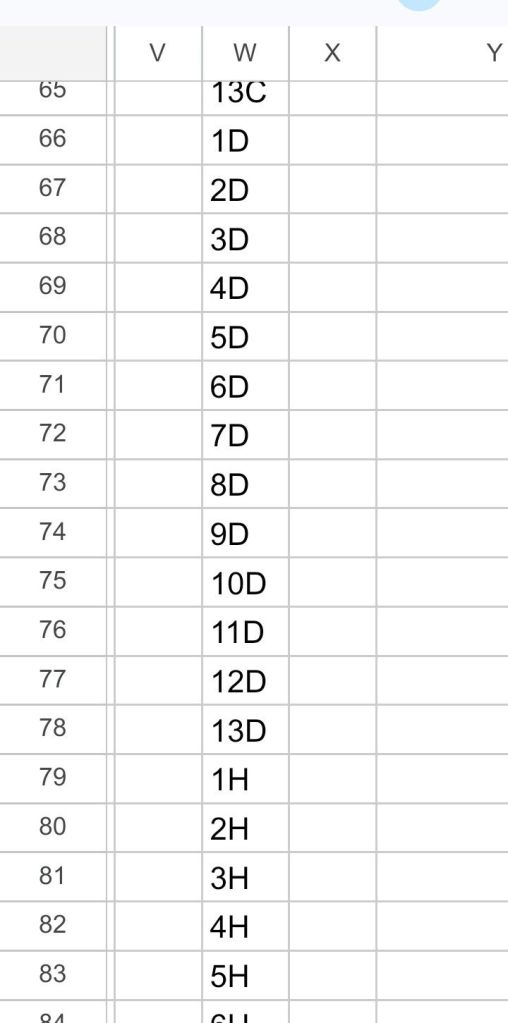
Now go back to cell W66, and change 1C to 1D. Continue changing C to D until you reach cell W78, making it D13.
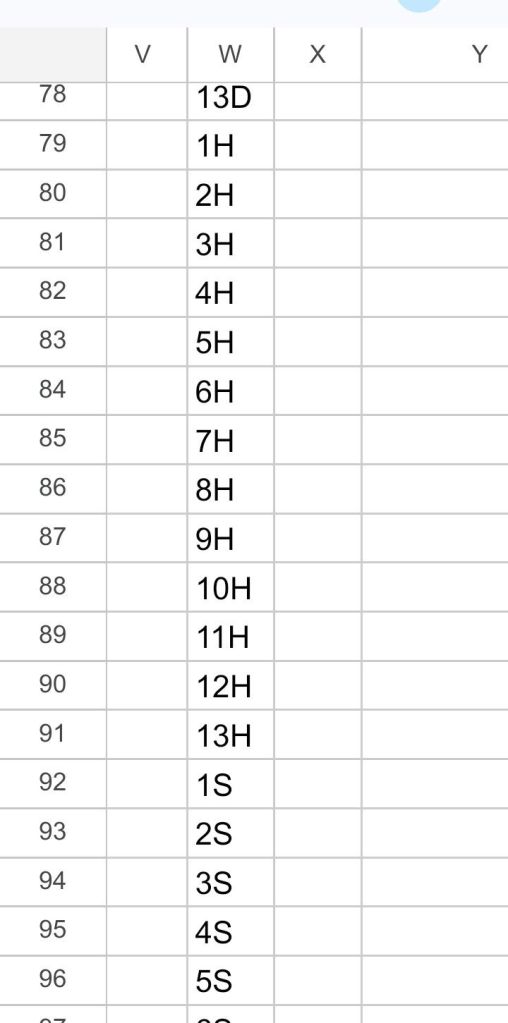
Change C to H starting with cell W79 until you have created 13 Hs.
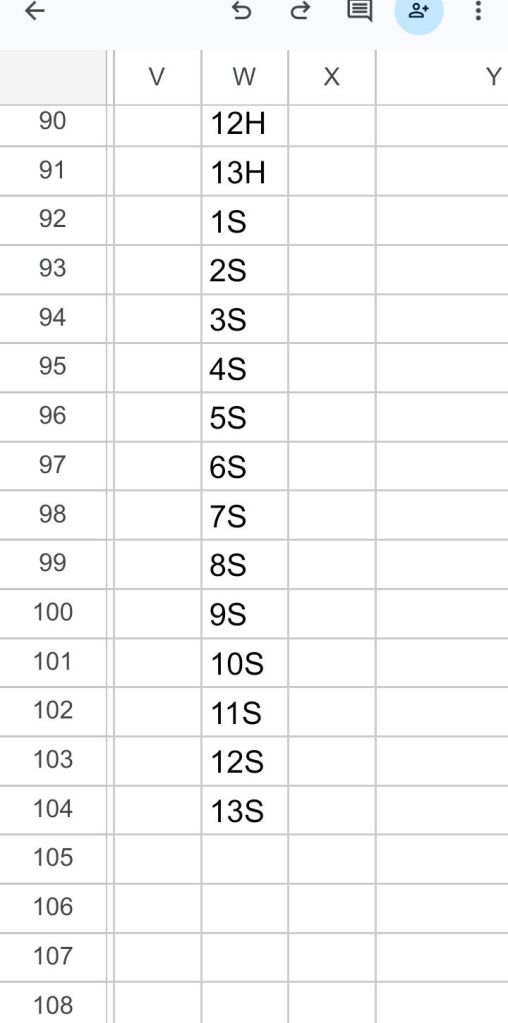
Starting with cell W92, change the Cs to Ss. Type S1 in W92, and so on to cell W104, making it read S13.
Create the Game Staging Area
Navigate to cell P1, and begin creating the staging area for the game token pattern by typing, =W53 in that cell. Press enter and, 1C, should show in that cell, unless the tokens have been shuffled. Cell P2 should be highlighted, type, =W54 in that cell, then enter.
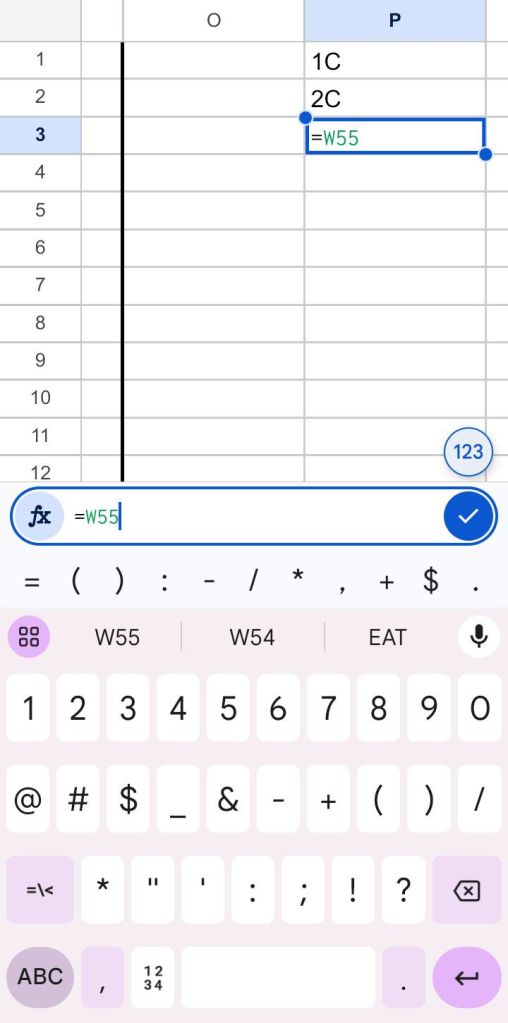
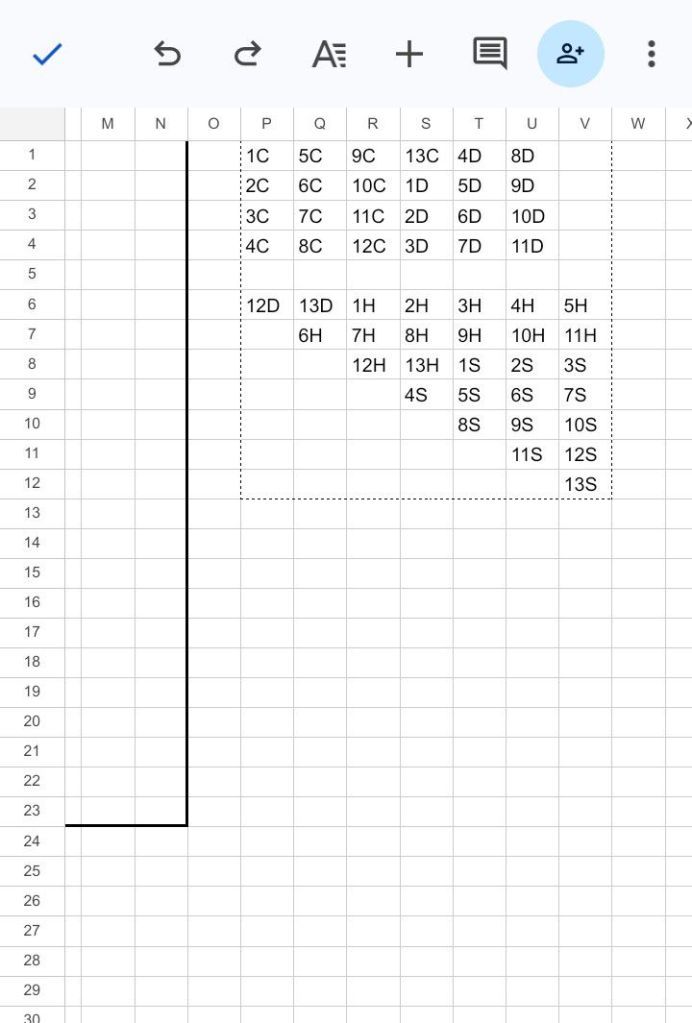
Complete the game token pattern by continuing to type =W53 through =W76 in cells P1 through U4. This makes the top rectangle of 24 game pieces which will be utilized in the two ordered patterns to be worked in the game, once they are shuffled and copied to the playing area.

Next make the space configuration for the triangular shaped main playing area of the game. Start with the row P6-V6. Type =W77 into cell P6, =W78 into cell Q6, and so on, typing =W83 into cell V6. Row 7 will span between columns Q and V. Type =W84 into cell Q7, =W85 into R7, and so until =W89 into cell V7. Start the 8th row with R8 and =W90 (It may be easier to save the = signs for last) Start the 9th row at S9 and =W95. Start the 10th row at T10 with =W99. Start the 11th row at U11 with =W102. Then put =W104 on cell V12, completing the triangle.

Then put a dotted line border around the staging area by highlighting between P1 and V12 the. Select window panes icon, then dotted line, then the pane with a heavy line around its perimeter. Then reduce the width of columns A through X. To do this highlight the entire columns A through X, then up at the top, drag column X to a third of its width. The other columns should be narrowed as well
Shuffle the Deck
Now we will shuffle the deck. Make a set of random numbers Type, =RANDARRAY(52,1) in cell Y1. This will produce a column of 52 random numbers, one in each row of the Y column between 1 and 52. They will be different numbers every time, and will change fairly often.
Put zeros in each cell from X1 through X52, so that when we sort column X it won’t mess up the game board and the staging area.
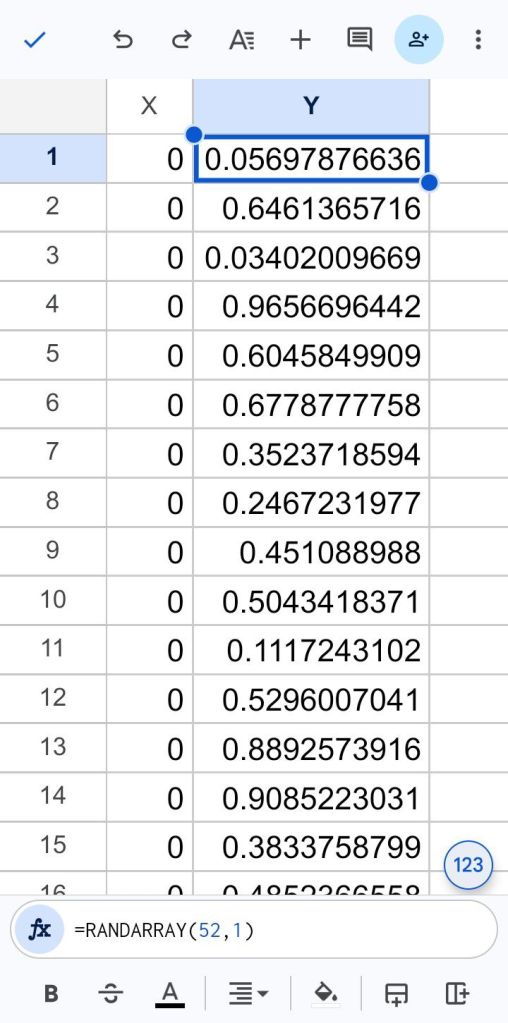
Then copy the random numbers, Y1 through Y52. Tap cell X53 twice and select paste special, and select values only from the menu.
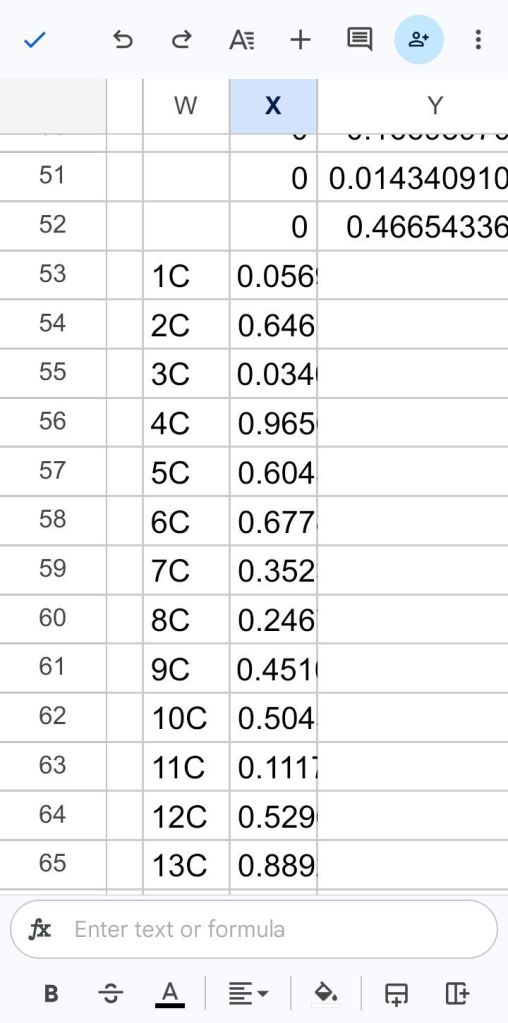
Now we are ready to sort column X, which is done from the top of the column, slightly above cell X1. Tap the blue area at the top of the column twice. You may have to pull the menu out to select sort A-Z. If you accidently select sort Z-A tap undo. Look At the staging area. It should no longer be in the same order, but the token names should occupy the same cells as before.

Now select the staging area along the dotted lines we drew and copy. Then tap cell A1 twice. This is another paste where we must use paste special and choose values only.
Even without the formats, the game is playable, using cut and paste to move the pieces one at a time. C and S count as black, and D and H count as red.
Format Game Tokens
We will apply conditional formatting to the playing area. We will apply three formatting rules:
Text ends with D
Text ends with H
Text is not empty
To do this:
• Highlight from A1 through N23
• Tap icon at the top that looks like a capital A with five short horizontal lines on the right side of it
• Tap conditional formatting
• Format cells if: text ends with
• Value or formula: D
• Tap +
• Choose text color dark red
• Choose fill color dark red
• Choose 2rd hue from the lightest
• Accept with ✓
• Click Add
• Format cells if: text ends with
• Value or formula: H
• Tap +
• Choose text color dark red
• Choose fill color dark red
• Choose 2rd hue from the lightest
• Accept with ✓
• Click Add
• Format cells if: is not empty
• Tap +
• Choose text color black
• Choose fill color black
• Choose third hue from the lightest
• Accept with ✓
• Accept with ✓
Game Rules
Order the tokens in ascending numerical order in one column, per each of D, H, C, and S suits in columns I through L, starting with 1. The player may not place a piece in this area, other than a 1, unless the previous number of that suit has already been placed in the I-L columns.
The player has free access to the tokens in columns A-F, rows 1-4, however, using these is not always the best strategy.
Player is to access only the bottom pieces in rows 6-12 columns A-G, or, those already ordered in the red-grey, numerically descending order pattern, by either the player or by the deal (as long as there are no out of order pieces in the same column below them). (Alternate rules can be played, but the game is more entertaining if a consistent set of rules is agreed to and followed.) Order the pieces in descending numerical order, alternating red and grey.
When a column from row 6 down, column A-G, is empty, Player may place one of the 4 13s in row 6 of that column,
providing it comes from rows 1-4, A-F, or is the bottom piece in columns A-G, row 6 or below, or has already been
ordered in descending numerical. order red and grey, or grey red with other pieces. In the latter case, Player may move all of those particular pieces together. Below the 13 may be placed a 12 of the other color. Below a 7 may be placed a 6 of the other color, and so on.
New Game
select A1:N23
clear
select Y1:Y52
copy
select X53
paste special – paste values only
select column X
sort A-Z
select P1:V12
copy
select A1
paste special – values only
Play the Same Game Again
select A1:N23
clear
select P1:V12
copy
select A1
paste special – values only
 Albino Lizard
Leave a comment